
Quick Answer
Most touch and tap issues in Game of Thrones: Kingsroad on mobile can be fixed by adjusting touch sensitivity settings, lowering graphics to reduce input lag, closing background apps, and ensuring your device meets minimum requirements. If controls remain unresponsive, try clearing the app cache or reinstalling.
Field Notes
- • Lower graphics quality to reduce touch input lag on mid-range devices.
- • Close all background apps before playing to free up RAM and CPU.
- • Check touch sensitivity settings in both the game and your device settings.
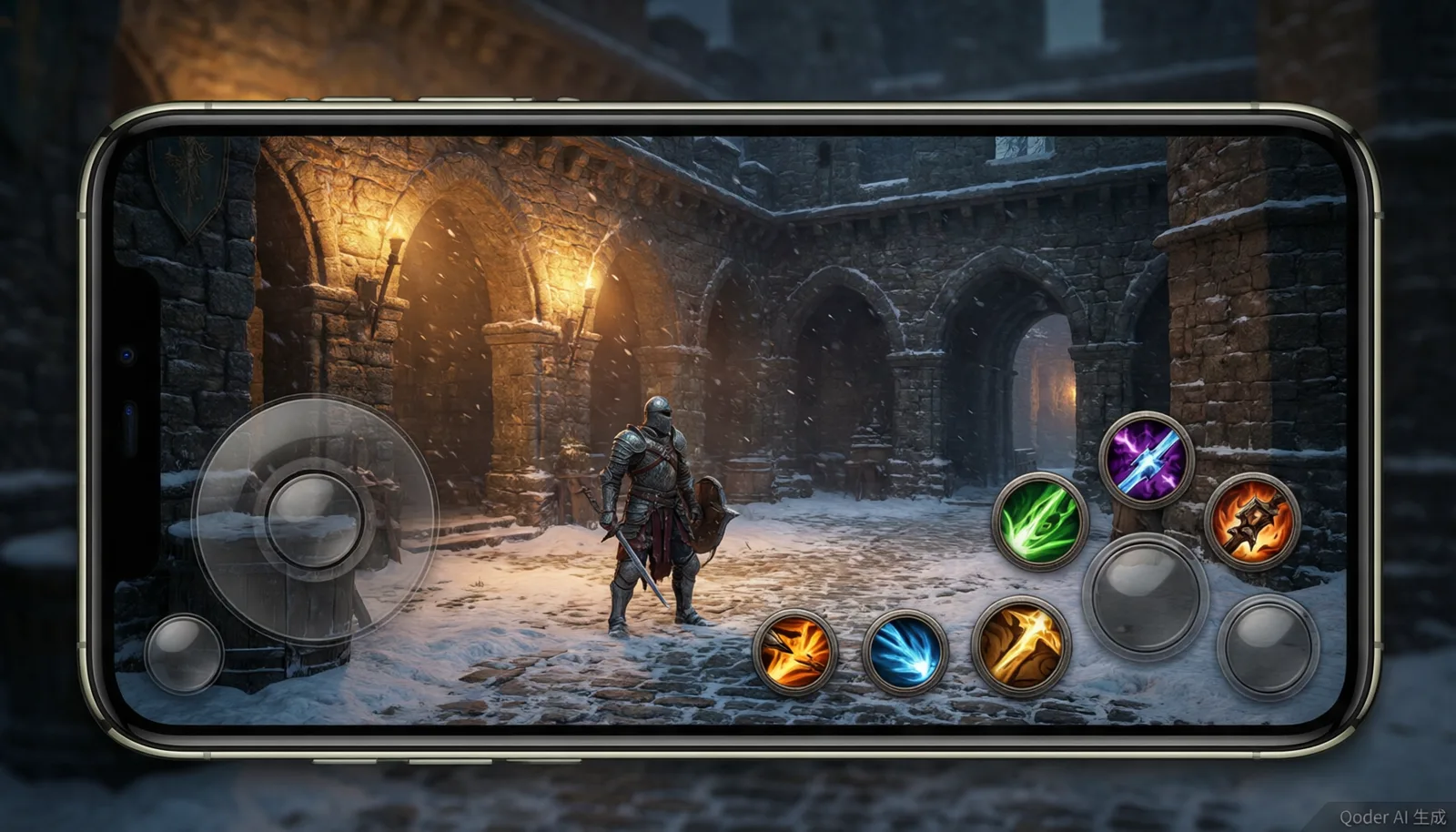
Quick Answer
If touch controls are not working in Game of Thrones: Kingsroad on mobile, the most effective fixes are:
- Lower graphics settings to reduce input lag.
- Close all background apps to free up device resources.
- Restart the game app completely.
- Check touch sensitivity settings in both the game and your device.
- Clear the app cache or reinstall if the problem persists.
Most players find that touch responsiveness improves significantly after adjusting graphics and freeing up system resources. If your device is older or below minimum specifications, touch delay may be harder to eliminate entirely.
This independent fan guide is not affiliated with HBO, Warner Bros., Netmarble, or the official Game of Thrones: Kingsroad team.
Why Touch Issues Happen on Mobile
Touch and tap problems are among the most frequently reported mobile complaints in community discussions about Game of Thrones: Kingsroad. Player reports consistently describe situations where on-screen controls stop responding, taps fail to register during combat, or touch inputs feel delayed by a noticeable margin. Community feedback suggests that these issues affect a wide range of devices, from budget phones to newer flagship models.
The reasons behind unresponsive touch controls are rarely simple. Mobile games rely on a complex chain of input processing: your finger touches the screen, the device digitizer registers the contact, the operating system passes the input event to the game, and the game engine translates that event into an action. Any bottleneck in this chain can produce the sensation that tapping does nothing. High graphics settings can overload the GPU and cause the game loop to fall behind on processing input events. Background applications can consume CPU cycles and RAM, leaving less capacity for the game to handle touch events promptly. Device-specific factors such as screen protectors, touch sampling rate, and thermal throttling can all contribute to the problem.
Community discussions indicate that touch issues tend to appear most often during demanding gameplay moments: boss fights with heavy visual effects, crowded combat scenarios with many enemies on screen, and extended play sessions where the device has heated up significantly. This pattern suggests that resource contention, rather than a simple software bug, is frequently the underlying cause.
Understanding where the problem originates is the first step toward fixing it. The troubleshooting steps below are organized from quickest to most involved, so you can try the easiest solutions before moving on to more drastic measures.
Quick Fixes to Try First
Before diving into detailed settings adjustments, try these immediate steps. Many players have noted that simple fixes resolve touch problems without requiring deeper changes.
Restart the Game App
Force-close the Kingsroad app completely and relaunch it. On most devices, swiping the app away from the recent apps list is not enough. Use the force-stop option in your device settings or app manager to ensure the process is fully terminated. When the app restarts, touch input handling is reinitialized, which can clear temporary glitches.
Lower Graphics Immediately
Switch your graphics preset to Low or Medium. High and Ultra settings push more visual data through the GPU, which can cause the game engine to deprioritize input polling. If your touch controls become responsive after lowering graphics, you have identified the likely cause. You can then fine-tune individual settings later to find a balance between visual quality and input responsiveness.
Close All Background Apps
Background applications consume RAM and CPU resources that the game needs. Close everything else running on your device before launching Kingsroad. Pay particular attention to resource-heavy apps such as social media clients, streaming services, navigation tools, and messaging apps with active synchronization. On Android devices, you can use the built-in device care or memory management tool to free up resources. On iOS, swipe up on each app in the app switcher to close it.
Check for Overheating
If your device feels warm to the touch, thermal throttling may be reducing performance and affecting input processing. Remove any case that traps heat, lower your screen brightness, and allow the device to cool for a few minutes before resuming play. Many players find that touch responsiveness degrades noticeably after the device temperature rises during extended sessions.
Toggle Airplane Mode
Some players have reported that temporarily enabling and then disabling Airplane Mode can reset the device's input stack and resolve transient touch issues. While this is not a guaranteed fix, it is quick and harmless to try. Make sure you are connected to stable Wi-Fi before re-enabling network connections if you are playing online.
Touch Control Layout Explained
Understanding where the touch controls are positioned on screen can help you identify whether you are tapping in the correct zones. Game of Thrones: Kingsroad uses a virtual control scheme common to mobile action RPGs.
The virtual joystick for character movement is located in the lower-left area of the screen. Action buttons, including basic attack, skills, and dodge, are clustered in the lower-right area. Camera control is handled by touching and dragging anywhere on the upper portion of the screen that is not occupied by a button or UI element. Additional buttons for menus, inventory, and other features are distributed along the top and sides of the screen.
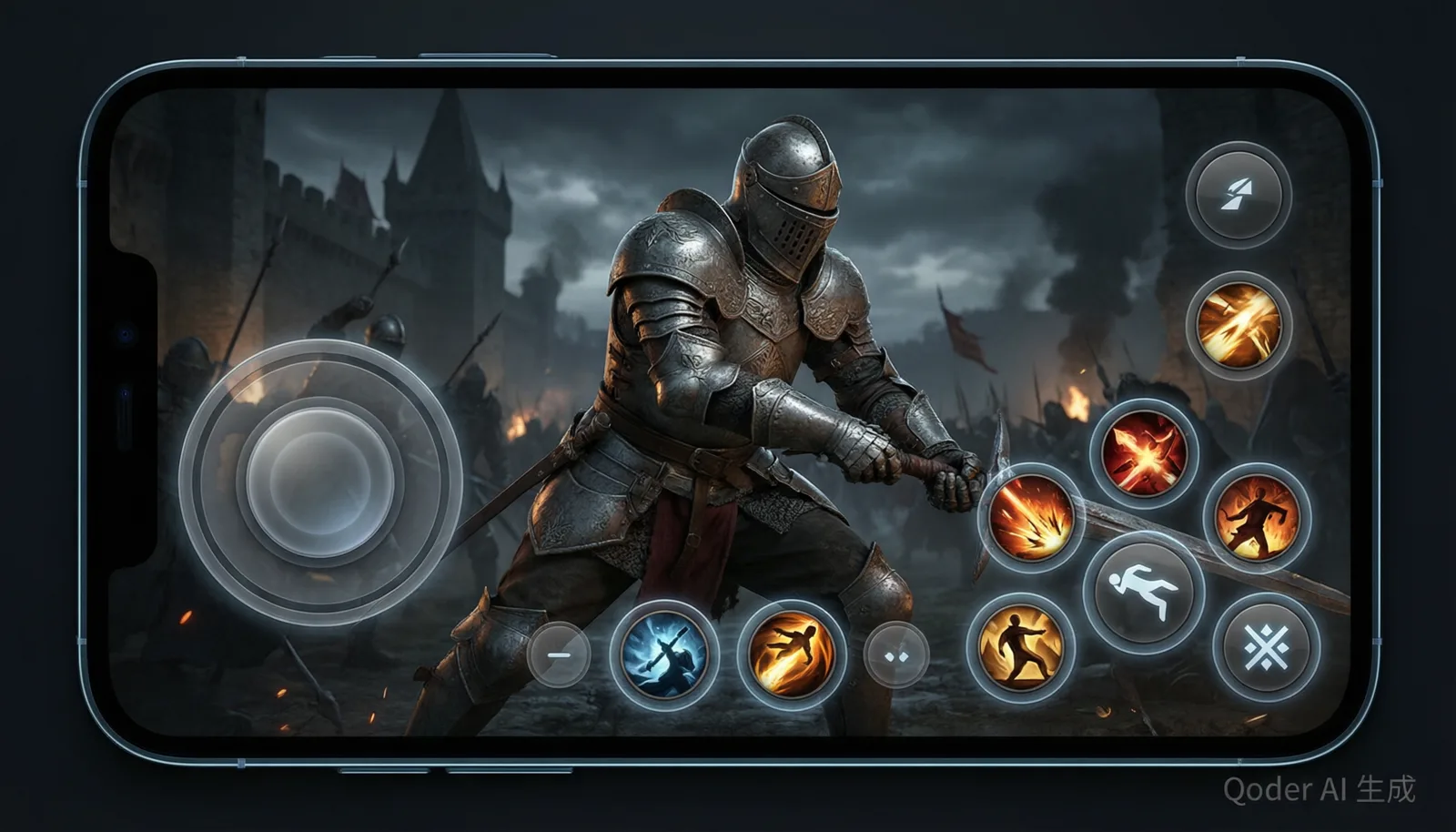
A common source of "unresponsive" touch is simply tapping outside the active control zones. During intense combat, it is easy for your thumb to drift off the attack button or for your finger to land on a UI element instead of the camera drag area. If you frequently feel like taps are not registering, check whether your fingers are consistently landing on the intended buttons.
Some players have noted that the default button sizes feel too small for comfortable play, especially on phones with screens smaller than 6.2 inches. If the game offers button size or layout customization, try increasing the size of the action buttons and repositioning them slightly to match your natural thumb reach. Even a small adjustment can reduce mis-taps significantly.
Another frequent issue is accidental multi-touch. If your palm or another finger rests on the screen while you are tapping, the device may register conflicting touch events that prevent the intended input from being processed. Be mindful of how you hold the device and whether any part of your hand is making unintended contact with the screen.
Graphics Settings and Input Lag
There is a direct relationship between graphics quality and touch responsiveness that many mobile players do not initially consider. When the GPU is working hard to render complex scenes, the game engine may process input events less frequently, resulting in a perceptible delay between your tap and the corresponding action on screen.
How Graphics Overload Causes Touch Delay
Mobile devices have limited processing resources shared between the CPU, GPU, and system processes. When Kingsroad runs at high graphics settings, the GPU spends more time rendering each frame. If the frame rate drops or becomes inconsistent, the input polling cycle can also become irregular. The result is that your tap on the dodge button may not be processed until the next available input cycle, which can feel like the game is ignoring your input entirely.
Community feedback suggests that this problem is most noticeable during boss encounters and other visually intensive scenes where particle effects, shadows, and environmental details are at their peak. Players commonly report that touch controls feel perfectly fine during exploration but become unreliable exactly when precise timing matters most.
Recommended Graphics Settings for Responsive Touch
To minimize input lag while maintaining acceptable visual quality, consider these adjustments:
| Setting | Recommendation | Impact on Touch |
|---|---|---|
| Graphics preset | Low or Medium | Reduces overall GPU load, improving input polling consistency |
| Shadows | Low or Off | Significant GPU savings, especially in outdoor areas |
| Effects quality | Low | Reduces particle rendering load during combat |
| Post-processing | Low or Off | Removes bloom, blur, and other effects that add GPU overhead |
| Anti-aliasing | Low or Off | Reduces per-frame rendering cost |
| Frame rate target | Match your device capability | A stable lower frame rate is better for input than an unstable high one |
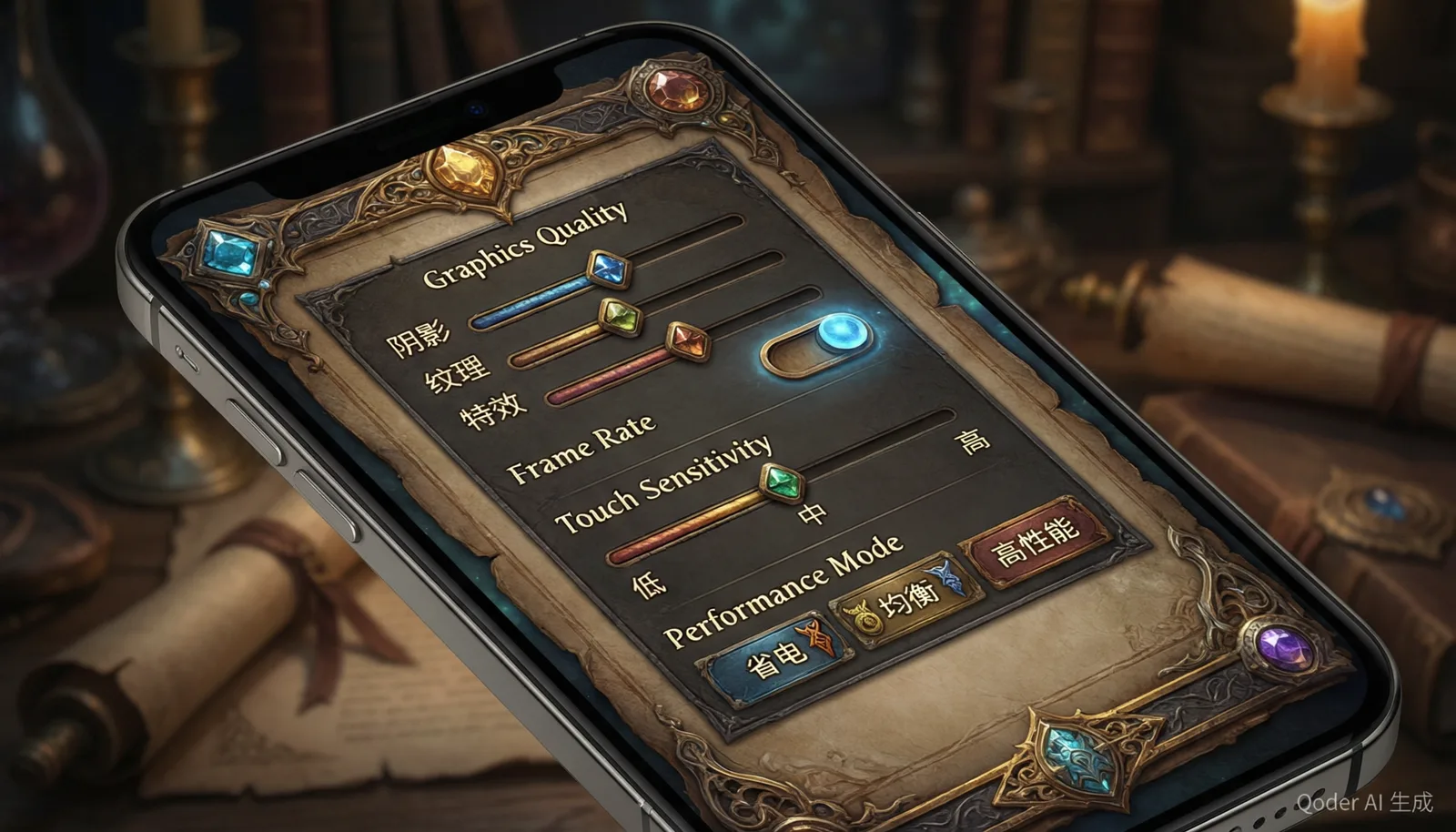
The key principle is stability over maximum quality. A game running at a steady 30 FPS with low graphics will generally feel more responsive than the same game fluctuating between 45 and 20 FPS on high graphics. For more detailed graphics tuning advice, refer to the graphics settings guide.
Performance Mode
If your device or the game offers a dedicated performance mode, enable it. Performance modes typically reduce visual fidelity in exchange for more consistent frame pacing and input processing. Many players find that this single toggle makes a substantial difference in touch responsiveness. For additional performance optimization tips, see the performance fix guide and the FPS boost guide.
Device-Specific Troubleshooting
Touch behavior varies considerably across mobile devices. Different manufacturers use different digitizer hardware, touch sampling rates, and software input processing pipelines. What works well on one device may feel unresponsive on another.
iPhone Troubleshooting
On iOS devices, touch processing is generally well-optimized, but several factors can still cause issues in Kingsroad:
- Assistive Touch and accessibility overlays: If you have Assistive Touch enabled, the floating button can intercept touch events or overlap with game controls. Disable it while playing by going to Settings > Accessibility > Touch > Assistive Touch.
- Guided Access: Some players use Guided Access to lock the device into a single app. While this can prevent accidental app switching, it can occasionally interfere with multi-touch input. Test with Guided Access disabled.
- iOS version: Make sure your device is running the latest iOS update. Apple frequently includes touch responsiveness improvements and bug fixes in system updates.
- Background App Refresh: Disable Background App Refresh for apps you do not need during gameplay. Go to Settings > General > Background App Refresh and turn off non-essential apps to reduce background CPU usage.
- Older iPhone models: Devices such as the iPhone XR, iPhone XS, and earlier may struggle with Kingsroad at higher settings. If you are using an older device, keeping graphics on Low is strongly recommended for responsive touch.
Android Troubleshooting
Android devices present a wider range of hardware configurations, which means more potential points of failure for touch input:
- Touch sampling rate: Some mid-range and budget Android phones have lower touch sampling rates (60 Hz or 120 Hz) compared to flagship devices (240 Hz or higher). A lower sampling rate means the screen checks for touch input less frequently, which can introduce perceptible delay. This is a hardware limitation that cannot be fully overcome through software.
- Game mode and game boosters: Many Android manufacturers include a game mode or game booster app. These tools can prioritize game performance by limiting background processes and allocating more CPU and GPU resources to the active game. Enable your device's game mode if available, and add Kingsroad to its list of managed games.
- Navigation gestures: Android's gesture navigation system can sometimes conflict with in-game touch controls, especially near the edges of the screen where swipe-to-go-back gestures are detected. Consider switching to traditional three-button navigation while playing to eliminate this conflict.
- Battery optimization: Android's battery optimization can throttle app performance when the system determines that an app is using too much power. Go to Settings > Apps > Kingsroad > Battery and set the app to "Unrestricted" or "Not optimized" to prevent the system from limiting its performance.
- Device-specific quirks: Some players have noted that certain Samsung, Xiaomi, and OnePlus models exhibit touch issues more frequently than others. Community discussions suggest that checking for device-specific firmware updates and disabling manufacturer-added touch enhancements can help.
Tablet Considerations
Playing Kingsroad on a tablet offers a larger screen, but it introduces different touch challenges. The greater distance between the virtual joystick and action buttons can make simultaneous movement and attacking more difficult. If you are using a tablet, consider adjusting button positions if the game allows it, or use a Bluetooth controller for more comfortable input. For a comparison of mobile and PC play experiences, see the mobile vs PC guide.
Touch Sensitivity Calibration
If your device's touch screen is not calibrated properly, taps may register inconsistently or in the wrong location. Both the game and your device operating system offer settings that can affect touch accuracy.
In-Game Touch Settings
Check whether Kingsroad offers touch sensitivity or camera sensitivity adjustments in its settings menu. If available, adjust these sliders incrementally:
- Start with the default sensitivity values.
- Increase touch sensitivity by one increment.
- Test in a low-pressure environment such as an exploration area.
- If taps feel more responsive, keep the change. If they feel erratic, revert.
- Adjust camera sensitivity separately to ensure smooth camera movement without overshooting.
Changing one setting at a time is important. If you adjust multiple sensitivity values simultaneously, you will not know which change produced the improvement or the new problem.
Device-Level Touch Settings
On some devices, you can adjust touch sensitivity at the system level:
- Samsung devices: Go to Settings > Display and enable "Touch sensitivity" to increase the screen's responsiveness. This is particularly useful if you are using a screen protector.
- General Android: Some devices offer a "Glove mode" or "High touch sensitivity" option in display settings that increases digitizer sensitivity.
- iOS: Go to Settings > Accessibility > Touch > Touch Accommodations. Here you can adjust hold duration and tap assistance, which may help if taps are not registering reliably.
Screen Protector and Case Interference
A thick screen protector or a case with raised edges can interfere with touch registration, particularly near the edges of the screen where many game controls are positioned. If you have recently applied a new screen protector and touch issues started afterward, the protector may be dampening touch sensitivity. Consider switching to a thinner protector or removing it temporarily to test whether it is the cause.
Similarly, some protective cases press against the screen edges and can cause phantom touches or prevent taps from registering in corner areas. Try removing the case to see if touch behavior improves.
App Cache and Reinstall
When touch problems persist after trying all the fixes above, the issue may be related to corrupted cached data or a faulty installation.
Clearing the App Cache
Over time, the game accumulates cached data including downloaded assets, temporary files, and configuration data. If this cached data becomes corrupted, it can cause various issues including input handling problems.
On Android:
- Go to Settings > Apps > Kingsroad.
- Tap "Storage & cache."
- Tap "Clear cache" first. This removes temporary files without affecting your game progress.
- Restart the game and test touch controls.
- If the problem persists, tap "Clear data" or "Clear storage." This will reset the app to its initial state, and you will need to log in again and re-download game assets.
On iOS:
iOS does not offer a direct cache-clearing option. To achieve a similar result:
- Go to Settings > General > iPhone Storage.
- Find Kingsroad in the app list.
- Tap "Offload App" to remove the app binary while keeping your documents and data.
- Reinstall the app from the App Store.
- If that does not help, delete the app entirely and reinstall it fresh.
When to Reinstall
Consider a full reinstall if:
- Touch issues started immediately after a game update.
- Clearing the cache did not help.
- Other players with the same device are not reporting similar issues, suggesting the problem is specific to your installation.
- You notice other unusual behavior such as crashes, graphical glitches, or missing UI elements alongside the touch problems.
Before reinstalling, make sure your game progress is linked to an account or cloud save so you do not lose your data. A fresh install forces the game to download all assets again, which can resolve issues caused by incomplete or corrupted files.
When to Switch Platforms
If you have tried every troubleshooting step in this guide and touch controls on mobile remain unreliable, it may be worth considering alternative ways to play.
Use a Bluetooth Controller
Many mobile devices support Bluetooth controllers, which bypass touch input entirely. A controller provides physical buttons with tactile feedback, eliminating the mis-tap and sensitivity issues inherent to touch screens. Community feedback suggests that players who switch to a controller on mobile often report a significantly better experience, particularly for combat-heavy content that demands precise timing. Check the controller support guide for setup instructions and compatibility information.
Switch to PC
If your device hardware is the fundamental limitation, playing on PC may provide a more reliable experience. PC controls use mouse and keyboard input, which does not suffer from the same touch sampling rate and digitizer limitations as mobile screens. The game also tends to run more smoothly on PC hardware, further reducing input lag. See the mobile vs PC comparison for a detailed breakdown of the differences between platforms.
Evaluate Your Device
If your phone is several years old or was a budget or mid-range model when purchased, it may simply lack the hardware to run Kingsroad with responsive touch controls. In this case, upgrading to a newer device with a higher touch sampling rate and more powerful processor may be the most effective long-term solution. Flagship devices from the past two to three years generally offer the best touch responsiveness for mobile gaming.
Summary and Key Takeaways
Touch and tap issues in Game of Thrones: Kingsroad on mobile are a common source of frustration based on community discussions and player reports. However, most cases can be resolved through systematic troubleshooting.
The most important steps to remember are:
- Lower graphics settings first. High graphics quality is the most common cause of touch input lag. Reducing the GPU load often restores responsive controls immediately.
- Close background apps. Free up RAM and CPU resources so the game can process touch events without interruption.
- Restart the app. A clean restart reinitializes the input handling system and clears temporary glitches.
- Know your control zones. Make sure you are tapping in the correct areas, and consider adjusting button size and position if the game allows it.
- Check device-specific settings. Accessibility features, battery optimization, navigation gestures, and touch sensitivity options can all interfere with game input.
- Calibrate touch sensitivity. Both in-game and device-level sensitivity settings can improve tap accuracy.
- Clear cache or reinstall. Corrupted cached data can cause persistent input problems that settings adjustments alone cannot fix.
- Consider a controller or PC. If mobile touch remains problematic despite your best efforts, alternative input methods or platforms may provide a better experience.
Touch issues are rarely caused by a single factor. The most effective approach is to work through these steps methodically, testing after each change so you can identify exactly what resolves the problem on your device.
For more mobile optimization advice, see the best mobile settings and the mobile settings guide.
Related Guides
- Best Mobile Settings
- Mobile Settings Guide
- Graphics Settings
- Performance Fix
- FPS Boost
- Mobile vs PC
- Controller Support
Last Updated: 2026-06-08
Troubleshooting disclaimer: Touch behavior varies by device, operating system version, game updates, and individual hardware conditions. This guide provides general troubleshooting steps based on community feedback and player reports. Results may differ depending on your specific situation.
Guide Navigation
Continue Reading
Classes
7 min readBest Class in Game of Thrones: Kingsroad – Tier List, Builds & Beginner Picks
Find the best class in Game of Thrones: Kingsroad by player type, including beginners, solo players, mobile players, damage-focused players, and survivability-focused players.
Classes
7 min readGame of Thrones: Kingsroad Class Tier List
A current Game of Thrones: Kingsroad class tier list for Assassin, Knight, and Berserker, ranked for damage, survivability, progression, mobility, and beginner comfort.
Beginner
6 min readGame of Thrones: Kingsroad Beginner Guide
A careful early-game beginner guide for Game of Thrones: Kingsroad players, focused on progression habits, build safety, combat basics, settings, and what to verify in-game.
Settings
7 min readBest Mobile Settings for Game of Thrones: Kingsroad
Best mobile settings for Game of Thrones: Kingsroad, including graphics, controls, class choice, battery, heat, performance, and touch-control comfort.
FAQ
Why can't I tap or touch anything in Kingsroad?
Unresponsive touch is usually caused by input lag from high graphics settings, background apps consuming resources, or a touch calibration issue. Lower your graphics settings and restart the app.
How do I fix touch lag on mobile?
Set graphics to Low or Medium, enable performance mode if available, close background apps, and make sure your device OS is up to date.
Does device type affect touch responsiveness?
Yes. Older devices or those below minimum specs may experience touch delay. Flagship devices generally have the most responsive touch controls.